
Ein Foto, ein Urteil, wiederfinden.
One photo, one verdict, find it again.
ritrovo braucht kein Konto. Beim ersten Start erzählen zwei Blätter, worum es geht, und fragen nach der Kamera. Auf dem zweiten Blatt stehen dazu drei Schalter (Ort, Zweitschrift, Mediathek). Alles lässt sich später ändern.Nach der Kamera geht es mit Los geht's weiter. Nach dem Standort fragt Android, wenn du den Sucher zum ersten Mal öffnest.
ritrovo needs no account. On first launch, two sheets explain what it is about and ask for the camera. The second sheet also has three switches (place, second copy, photo library). You can change all of them later.After the camera, Let's go takes you in. Android asks for your location the first time you open the viewfinder.
Fotografieren
Tippe unten rechts auf den Kamera-Kreis, löse aus, tippe auf Fertig. Der Eintrag steht.
Genauer →Urteilen
Öffne den Eintrag und tippe auf den Medaillen-Chip: einmal für Gold, weiter für Silber, Bronze, Niete.
Genauer →Wiederfinden
Karte, Liste oder Galerie oben rechts, dazu das Suchfeld unten. Nach einer neuen Aufnahme meldet sich ritrovo, wenn es etwas wiedererkennt.
Genauer →Take a photo
Tap the camera circle at the bottom right, press the shutter, tap Done. The entry is there.
Details →Give a verdict
Open the entry and tap the medal chip: once for gold, again for silver, bronze, dud.
Details →Find it again
Map, list or gallery at the top right, plus the search field at the bottom. After a new shot, ritrovo speaks up when it recognises something.
Details →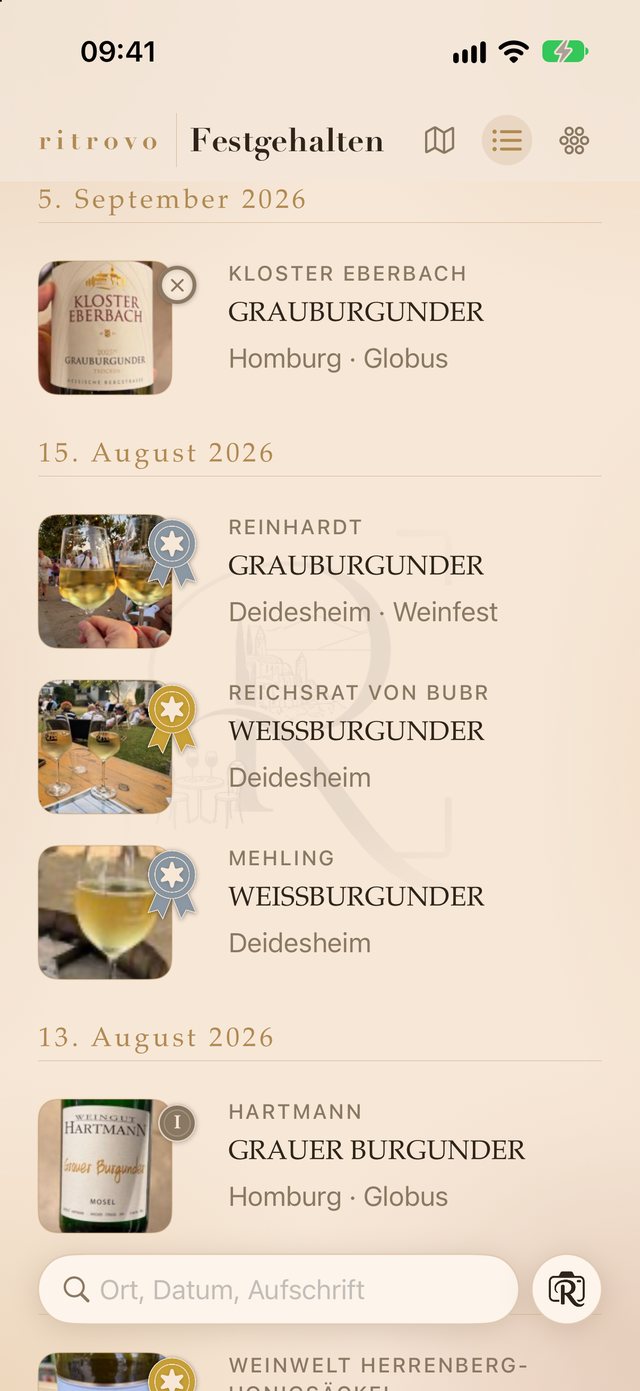
So ist die App aufgebaut
- Wortmarke „ritrovo“
- Oben links. Öffnet Über ritrovo mit allen Einstellungen und der Sicherung.
- Drei Zeichen oben rechts
- Auf der Karte, Als Liste, Zur Galerie. Sie wechseln die Ansicht. Die zuletzt gewählte bleibt beim nächsten Öffnen.
- Suchfeld unten
- Ort, Datum, Aufschrift. Die Suche gilt für Karte, Liste und Galerie.
- Kamera-Kreis unten rechts
- Aufnehmen öffnet den Sucher.
- Ein Eintrag
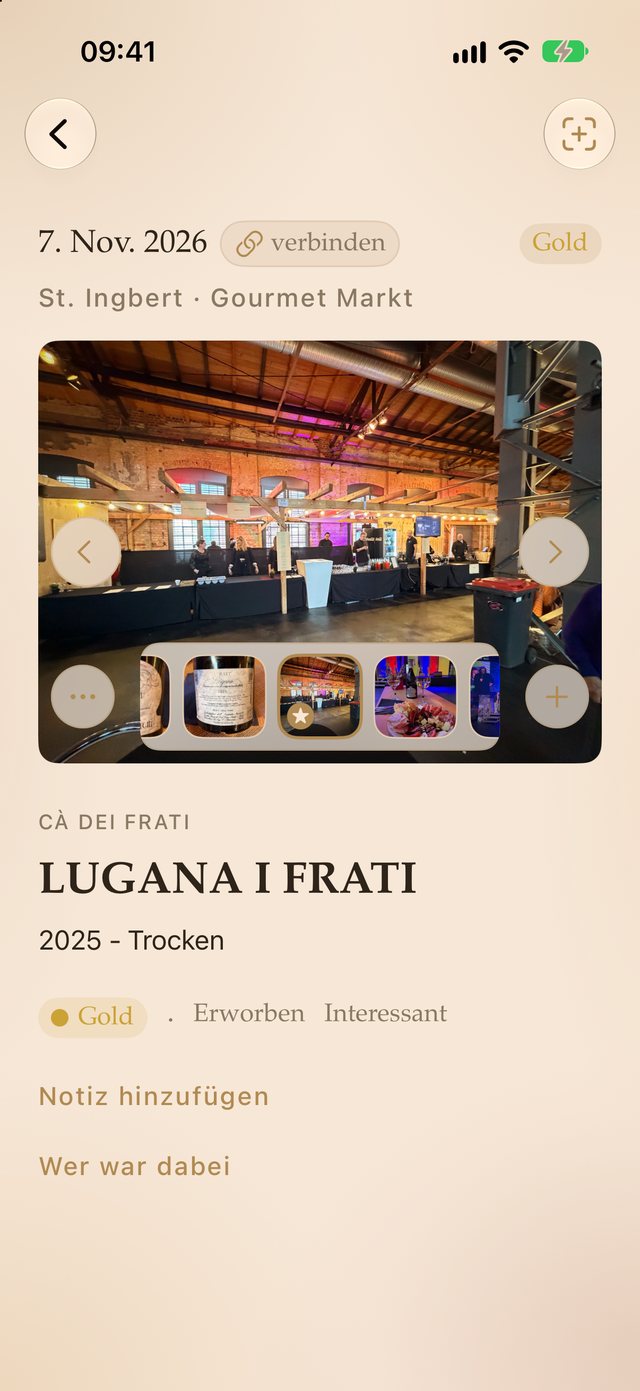
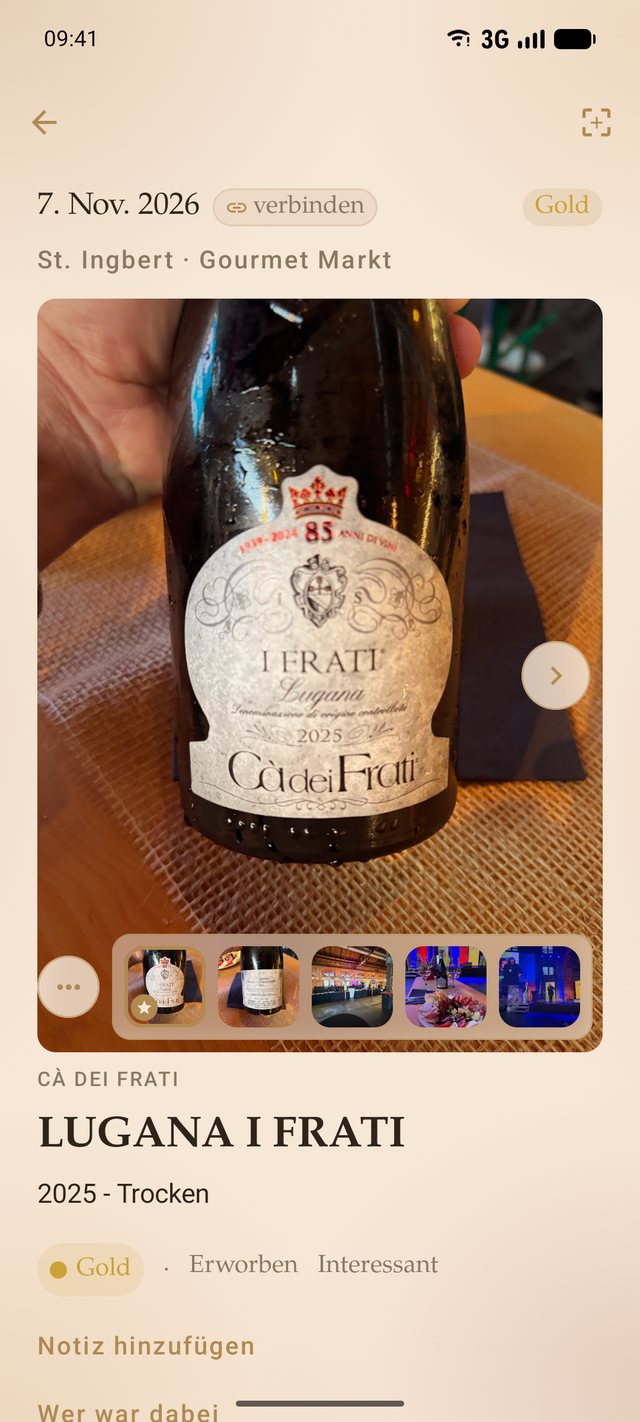
- Antippen öffnet ihn: Datum, Ort, Foto mit Bilderstreifen, Name, Medaille, Notiz, wer dabei war.
How the app is laid out
- The “ritrovo” wordmark
- At the top left. Opens About ritrovo with all settings and the backup.
- Three icons at the top right
- On the map, As a list, To the gallery. They switch the view. The one you chose last stays the next time you open the app.
- Search field at the bottom
- Place, date, lettering. Search applies to the map, the list and the gallery.
- Camera circle at the bottom right
- Capture opens the viewfinder.
- An entry
- Tap to open it: date, place, photo with picture strip, name, medal, note, who was there.
Beim allerersten Öffnen zeigt ritrovo die Kartedie Liste. Eine Tab-Leiste gibt es nicht. ritrovo läuft auf dem iPhone im Hochformat.
The very first time, ritrovo opens on the mapthe list. There is no tab bar. ritrovo runs on iPhone in portrait.
Wie mache ich was?
How do I do things?
Festhalten
Capture
Etwas festhaltenCapture something
- Tippe unten rechts auf den Kamera-Kreis Aufnehmen.
- Oben im Sucher stehen drei Ziele: Neuer Eintrag beginnt einen Eintrag, Letzter hängt das Foto an den jüngsten Eintrag, Nur Galerie legt es nur in deine Fotomediathek.
- Nach dem ersten Foto steht oben im Sucher Neuer Eintrag, darunter je Eintrag ein Punkt mit der Zahl seiner Fotos.
- Löse aus. Mehrere Aufnahmen hintereinander (Flasche, Rückseite, Glas) werden ein Eintrag.
- Tippe auf Fertig.
Beim Auslösen fragt ritrovo nichts. Steht auf dem Etikett ein klarer Namenszug, setzt ritrovo ihn selbst als Namen.
Im Sucher stellt ein Tipp scharf, zwei Finger zoomen, der Blitz kommt von selbst. Erkennt der Sucher einen Strichcode, meldet er Strichcode erkannt. Mit dem Live-Photo-Schalter nimmst du ein Live Photo auf.
Erkennt der Sucher einen Strichcode, meldet er Strichcode erkannt.
Der Strichcode hilft nur beim Wiederfinden in deiner eigenen Sammlung. Nachgeschlagen wird nichts.
- Tap the camera circle Capture at the bottom right.
- At the top of the viewfinder there are three targets: New entry starts an entry, Last adds the photo to the most recent entry, Gallery only just saves it to your photo library.
- After the first photo, New entry appears at the top of the viewfinder, and below it one dot per entry with the number of its photos.
- Press the shutter. Several shots in a row (bottle, back label, glass) become one entry.
- Tap Done.
ritrovo asks nothing when you press the shutter. If the label has clear lettering, ritrovo sets it as the name itself.
In the viewfinder, a tap focuses, two fingers zoom, and the flash fires by itself. When it spots a barcode, it says Barcode detected. The Live Photo switch takes a Live Photo.
When the viewfinder spots a barcode, it says Barcode detected.
The barcode only helps you find things in your own collection. Nothing is looked up.
Mehrere Einträge in einem DurchgangSeveral entries in one go
Alles, was du nacheinander auslöst, gehört zu einem Eintrag, auch mit Pausen dazwischen. Für den nächsten Wein tippst du oben noch einmal auf Neuer Eintrag: Die nächste Aufnahme beginnt einen neuen Eintrag. Jeder Eintrag bekommt einen eigenen Zählpunkt mit der Zahl seiner Fotos.
Everything you shoot in a row belongs to one entry, even with pauses in between. For the next wine, tap New entry at the top again: the next shot starts a new entry. Each entry gets its own dot with the number of its photos.
Vorhandene Fotos übernehmenUse photos you already have
- Öffne den Sucher und tippe links auf den Galerie-Knopf.
- Der Hinweis Die Fotos eines Weins erklärt es kurz. Tippe auf Fotos wählen.
- Wähle bis zu zehn Fotos. Zusammen werden sie ein Eintrag.
- Öffne den Sucher und tippe auf den Galerie-Kreis (Bild aus der Mediathek).
- Wähle in der Fotoauswahl von Android ein Foto. Es wird ein Eintrag.
Auf Android übernimmt ritrovo ein Bild je Vorgang. Weitere Bilder fügst du im Eintrag über das + im Bilderstreifen an.
Hast du Aufnahmetag und Ort aus der Mediathek eingeschaltet, übernimmt ritrovo Datum und Ort des Fotos.
- Open the viewfinder and tap the gallery button on the left.
- The note The photos of one wine explains it briefly. Tap Pick photos.
- Choose up to ten photos. Together they become one entry.
- Open the viewfinder and tap the gallery circle (Pick from the photo library).
- Choose one photo in Android’s photo picker. It becomes an entry.
On Android, ritrovo takes one picture at a time. You add more pictures in the entry with the + in the picture strip.
If Take the date and place from the library is on, ritrovo takes over the photo’s date and place.
Vom Sperrbildschirm aus fotografierenCapture from the Lock Screen
Lege das Widget Aufnehmen auf den Sperrbildschirm (rund oder breit; dazu Aufnehmen · schlicht). Ab iOS 18 gibt es zusätzlich ein Steuerelement für das Kontrollzentrum und die Knöpfe des Sperrbildschirms. Alle öffnen direkt den Sucher. Ein Widget für den Home-Bildschirm gibt es nicht.
Add the Capture widget to the Lock Screen (round or wide; there is also Capture · plain). From iOS 18 there is also a control for Control Center and the Lock Screen buttons. All of them open the viewfinder directly. There is no Home Screen widget.
Die Kamera ist nicht erlaubtThe camera is not allowed
Dann sagt der Sucher, dass ritrovo die Kamera nicht benutzen darf. Tippe auf In den Einstellungen erlauben und schalte die Kamera für ritrovo ein. Bis dahin geht Bild aus der Mediathek.
Fehlt eine andere Freigabe (Standort, Fotos), schaltet ritrovo den passenden Schalter selbst wieder aus und sagt warum.
The viewfinder then tells you that ritrovo isn’t allowed to use the camera. Tap Allow it in Settings and switch the camera on for ritrovo. Until then, Pick from the photo library works.
If another permission is missing (location, photos), ritrovo switches the matching switch off again itself and says why.
Der Eintrag
The entry
Eine Medaille vergebenGive a medal
- Öffne den Eintrag. Unter dem Namen sitzt der Medaillen-Chip (Bewerten, solange es keine Medaille gibt).
- Ein Tipp ergibt Gold. Jeder weitere geht eine Stufe weiter: Silber, Bronze, Niete, dann wieder unbewertet.
- Gedrückt halten öffnet die Auswahl: Gold, Silber, Bronze, Niete oder unbewertet.
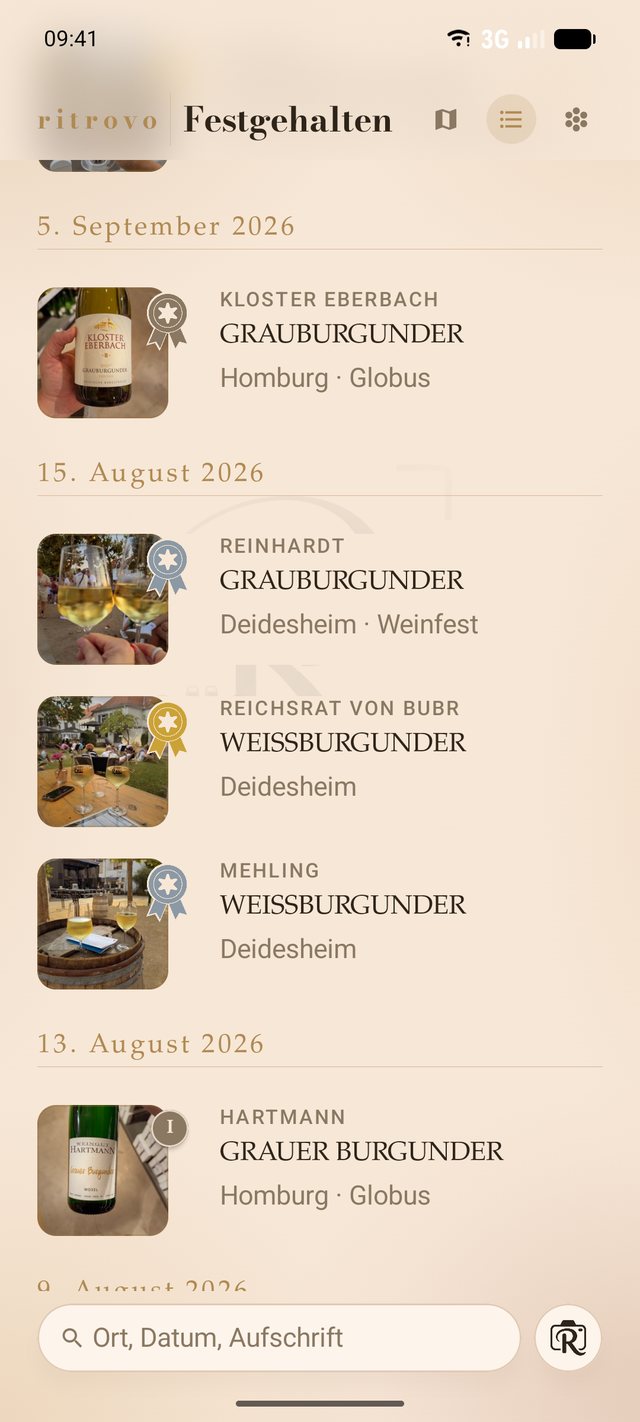
Daneben stehen Erworben und Interessant. Eines von beiden lässt sich wählen, ein zweiter Tipp nimmt es zurück. In der Liste trägt das Titelbild die Medaille als Siegel.
- Open the entry. The medal chip sits below the name (Rate it as long as there is no medal).
- One tap gives gold. Each further tap moves one step on: silver, bronze, dud, then unrated again.
- Touch and hold to open the choice: gold, silver, bronze, dud or unrated.
Next to it are Acquired and Interesting. You can pick one of them; a second tap takes it back. In the list, the cover photo carries the medal as a seal.
Den Namen aus dem Bild übernehmenTake the name from the picture
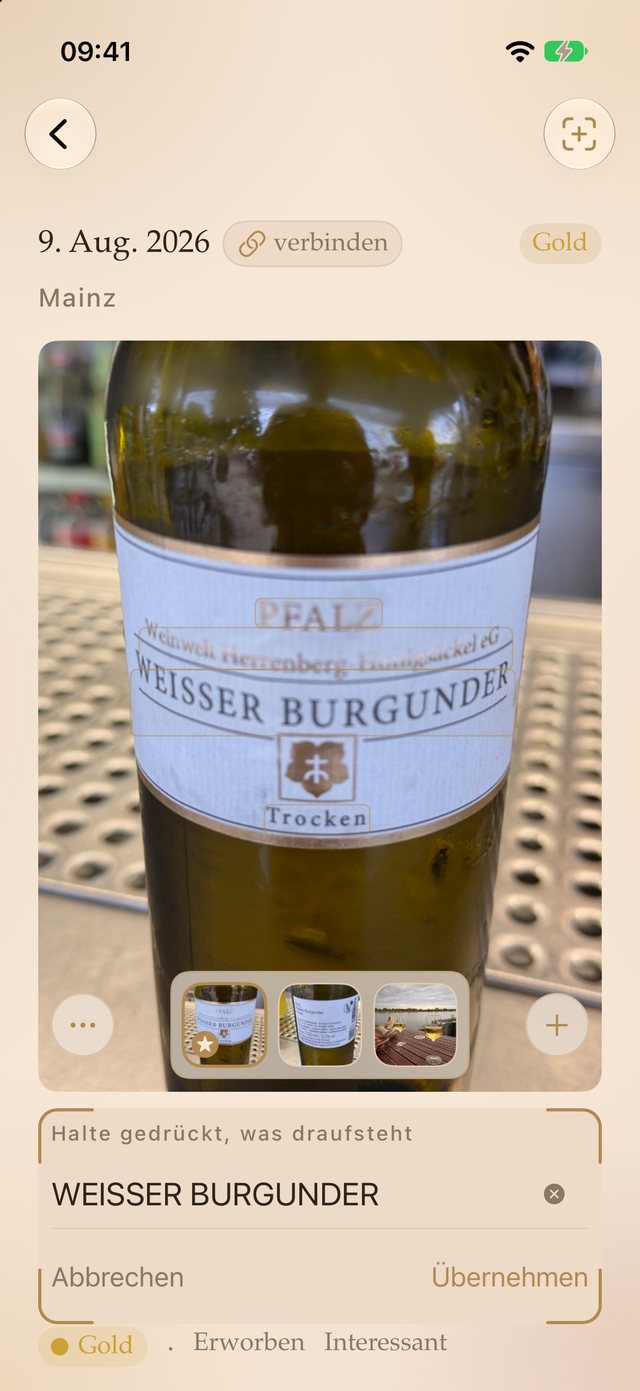
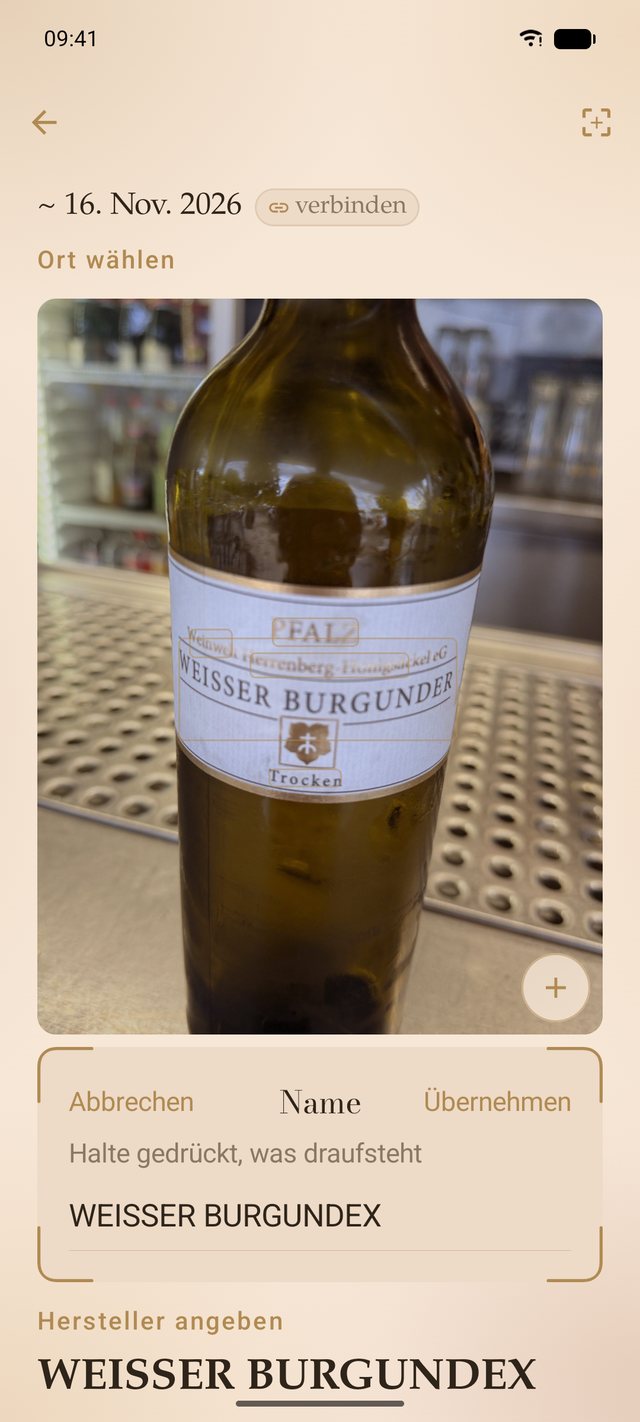
- Tippe im Eintrag auf Namen antippen (oder auf den vorhandenen Namen).
- Über dem Bild steht Halte gedrückt, was draufsteht. ritrovo rahmt die Zeilen, die es gelesen hat.
- Halte eine Zeile gedrückt. Wähle einzelne Wörter ab oder an.
- Tippe auf Übernehmen.
Genauso geht es mit Hersteller angeben und Beischrift angeben. Tippen per Tastatur geht immer.
- In the entry, tap Tap to name it (or the existing name).
- Above the picture it says Touch and hold what it says. ritrovo frames the lines it has read.
- Touch and hold a line. Deselect or select single words.
- Tap Use this.
It works the same way for Add a producer and Add a caption. Typing on the keyboard always works.
Auf der Weinkarte markierenTick lines on a wine list
Fotografiere die Karte. Tippe im Eintrag auf Markieren und halte auf dem Foto die Zeilen gedrückt, die du probiert hast. Was du markierst, findet die Suche wieder auf Android noch nicht.
Take a photo of the list. In the entry, tap Tap to tick and touch and hold the lines you tried. Search finds what you tick.On Android, search does not find what you tick yet.
Ort festhalten und benennenKeep and name the place
Der Schalter Ort am Eintrag festhalten in Über ritrovo ist anfangs aus. Eingeschaltet merkt sich ritrovo beim Auslösen, wo du bist, und schlägt einmal je Ort die Stadt nach.
Der Schalter Ort am Eintrag festhalten in Über ritrovo ist anfangs an. Beim ersten Öffnen des Suchers fragt Android nach dem Standort. ritrovo schlägt einmal je Ort die Stadt nach, über den Ortsdienst deines Geräts.
- Tippe im Eintrag auf Ort benennen und gib dem Ort deinen Namen, etwa „Bei Anke und Jörg“.
- Der Name gilt für alle Aufnahmen im Umkreis von etwa 80 Metern. Darunter schlägt ritrovo Orte In der Nähe und Deine Orte vor; im Feld „Stadt“ suchst du eine Stadt.
- Der Name gehört dem Ort und steht dann bei jedem Eintrag von dort.
- Gehört nur dieser Eintrag woanders hin: Diesen Eintrag woanders zuordnen → Ort wählen, notfalls Neuer Ort.
- Gehört der Eintrag an einen anderen deiner Orte: Ort wählen.
The Keep the place with the entry switch in About ritrovo is off at first. Switched on, ritrovo notes where you are when you take the picture and looks up the town once per place.
The Keep the place with the entry switch in About ritrovo is on at first. Android asks for your location the first time you open the viewfinder. ritrovo looks up the town once per place, through your device’s location service.
- In the entry, tap Name this place and give it your name, such as “At Anke and Jörg’s”.
- The name applies to every shot within about 80 metres. Below, ritrovo suggests places Nearby and Your places; the “Town or city” field searches for a town.
- The name belongs to the place and then stands on every entry from there.
- If only this entry belongs elsewhere: File this entry somewhere else → Choose a place, or New place.
- If the entry belongs to another of your places: Choose a place.
Datum, Hersteller, Beischrift, NotizDate, producer, caption, note
- Datum: antippen, dann Wann war dasim Kalender den Tag wählen.
- Hersteller steht klein über dem Namen, etwa das Weingut. Beischrift steht klein darunter, etwa die Rebsorte.
- Notiz: Notiz hinzufügen. Leer lassen löscht sie wieder.
Nichts davon ist Pflicht.
- Date: tap it, then pick the day in When was thisin the calendar.
- Producer appears small above the name, the winery for instance. Caption appears small below it, the grape for instance.
- Note: Add a note. Leaving it blank removes it again.
None of it is required.
Wer war dabeiWho was there
Tippe auf Wer war dabei, schreibe einen Namen und tippe auf Anlegen. Einmal angelegt, steht die Person beim nächsten Mal zur Wahl. Mit Fertig schließt du das Blatt. Hältst du eine Person gedrückt, kannst du ihr ein Foto geben (Foto auswählen) oder sie umbenennen.
Auf dein Adressbuch greift ritrovo nicht zu. Die Namen stecken in keiner Sicherung, siehe Häufige Fragen.
Tap Who was there, type a name and tap Add. Once added, the person is there to pick next time. Done closes the sheet. Touch and hold a person to give them a photo (Choose photo) or rename them.
ritrovo does not access your contacts. The names are not part of any backup, see FAQ.
Bilder hinzufügen, Titelbild wählen, Bilder löschenAdd pictures, choose the cover, delete pictures
- Hinzufügen: im Bilderstreifen auf + tippen. Es öffnet sich der Sucher.
- Titelbild: eine Miniatur gedrückt halten → Als Titelbild.
- Löschen: Auswählen, Miniaturen antippen, Bilder löschen. Löschst du das letzte Bild, ist der Eintrag weg.
- Eigener Eintrag: Ausgewählte Bilder macht Eigener Eintrag zu einem neuen Eintrag.
- Bildausschnitt: am großen Bild einen Ausschnitt aufziehen und mit dem Haken sichern.
- Vollansicht: Ein Tipp auf das große Bild zeigt es ganz, mit Zoom.
- Add: tap + in the picture strip. The viewfinder opens.
- Cover photo: touch and hold a thumbnail → Set as cover photo.
- Delete: Select, tap thumbnails, Delete pictures. Deleting the last picture removes the entry.
- Separate entry: Separate entry turns the selected pictures into a new entry.
- Crop: drag out a crop on the large picture and save it with the tick.
- Full view: tap the large picture to see all of it, with zoom.
Weiterer Eintrag am selben OrtAnother entry at the same place
Oben rechts im Eintrag legt Weiterer Eintrag einen leeren Eintrag am selben Ort an. Tippe dort auf Foto hinzufügen. Verlässt du ihn ohne Foto, verschwindet er wieder. Gedrückt halten bietet Bilder übernehmen an.
At the top right of an entry, Another entry creates an empty entry at the same place. Tap Add a photo there. If you leave it without a photo, it disappears again. Touch and hold offers Keep the photos.
Fotos vom selben Abend anhängenAdd photos from the same evening
Zeigen alle Bilder eines Eintrags nur Flasche, Glas oder Etikett und liegen in deiner Mediathek Fotos vom selben Abend, steht im Eintrag Weitere Fotos von diesem Abend mit Hinzufügen, Ausblenden und Später. Alle Fotos öffnet die ganze Mediathek.
Das geht nur mit eingeschaltetem Aufnahmetag und Ort aus der Mediathek. ritrovo fragt die Mediathek dabei nur nach dem Datum (0 Uhr bis 6 Uhr am Folgetag).
If all pictures of an entry show only a bottle, a glass or a label, and your library has photos from the same evening, the entry shows More photos from this evening with Add, Hide and Later. All photos opens the whole library.
This needs Take the date and place from the library to be on. ritrovo only asks the library by date (midnight to 6 a.m. the next day).
Wiederfinden
Finding again
Karte, Liste und GalerieMap, list and gallery
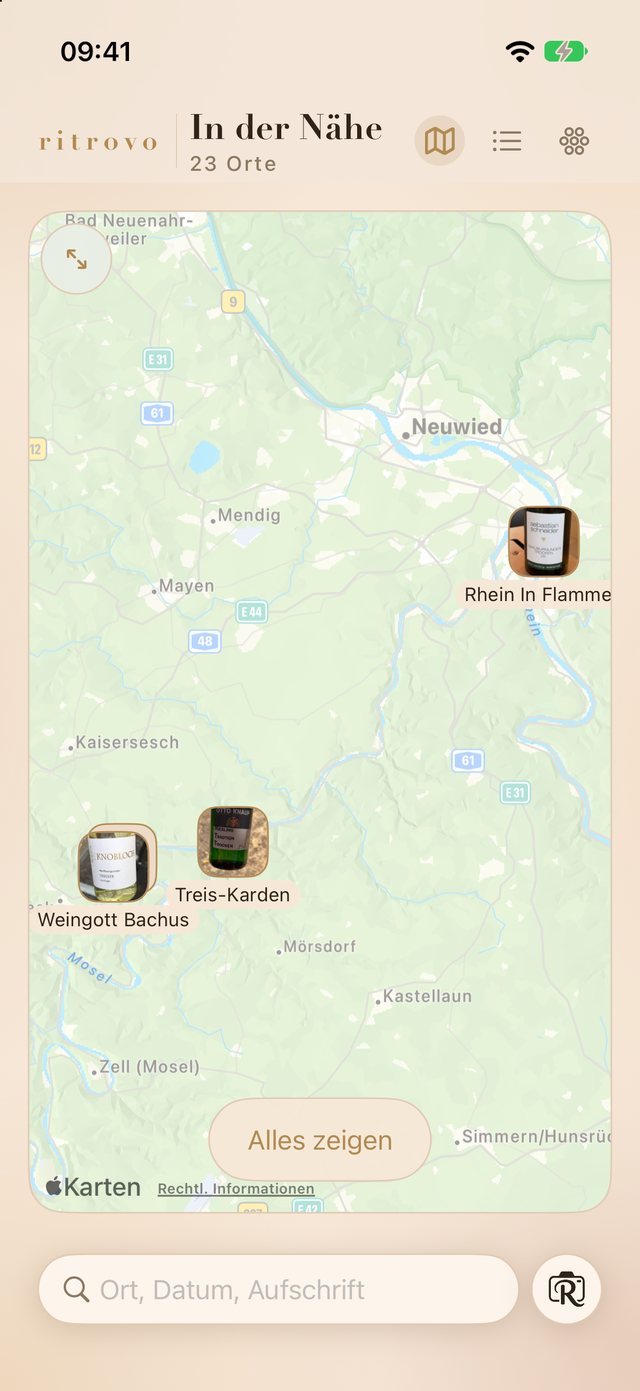
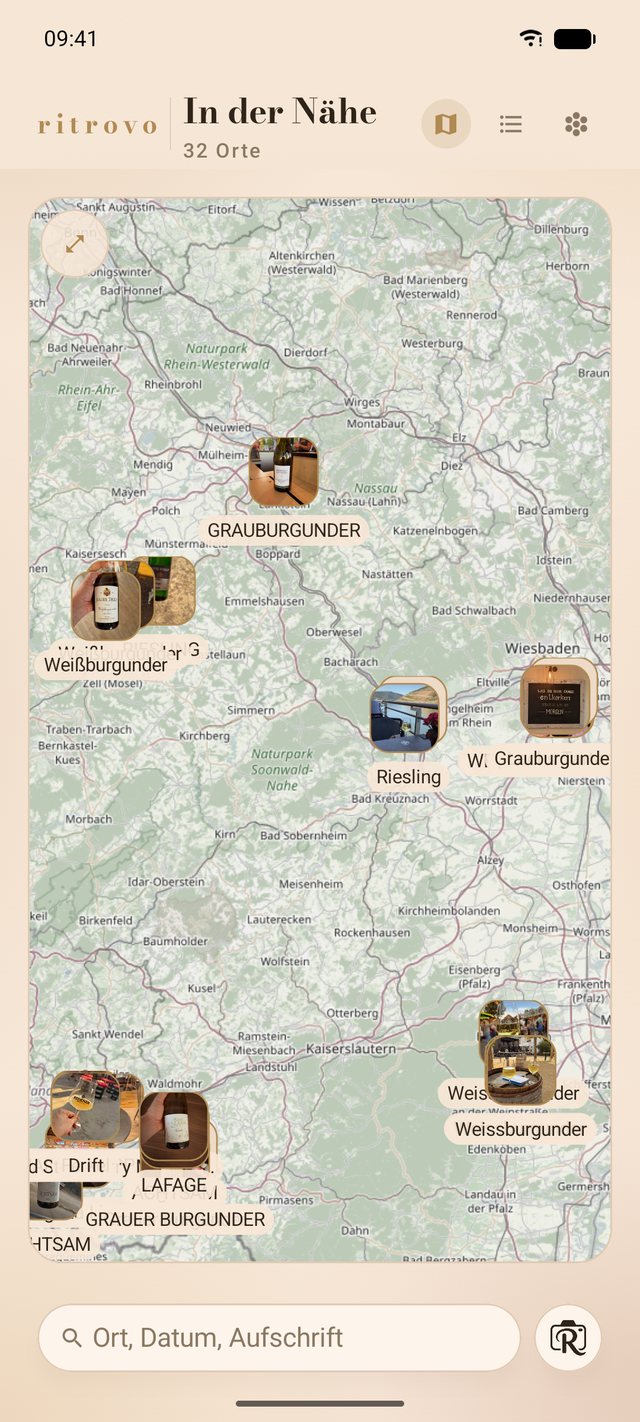
- Karte „In der Nähe“: je Ort eine Bild-Nadel. Ein Tipp öffnet den Eintrag, bei mehreren die Liste dieses Orts. Karte ganz zeigen holt alle Orte ins Bild. Alles zeigen hebt eine Suche wieder auf. Einträge ohne Ort stehen nicht auf der Karte.
- Liste „Festgehalten“: nach Tagen geordnet.
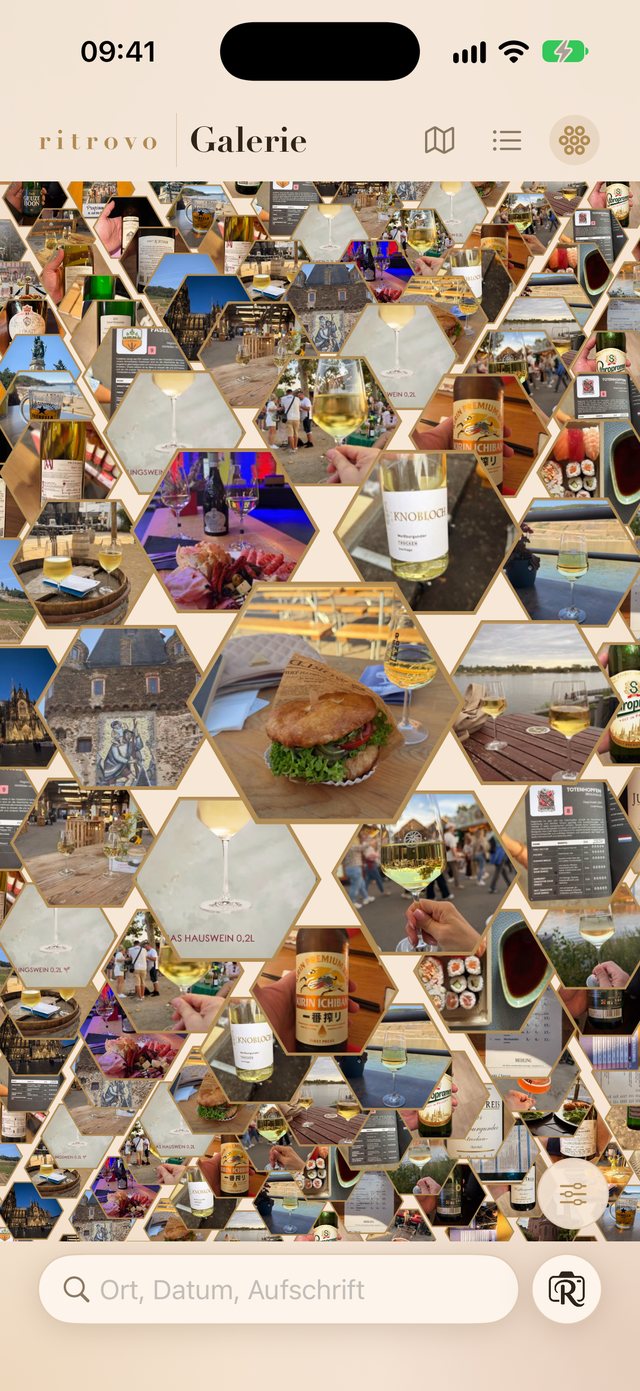
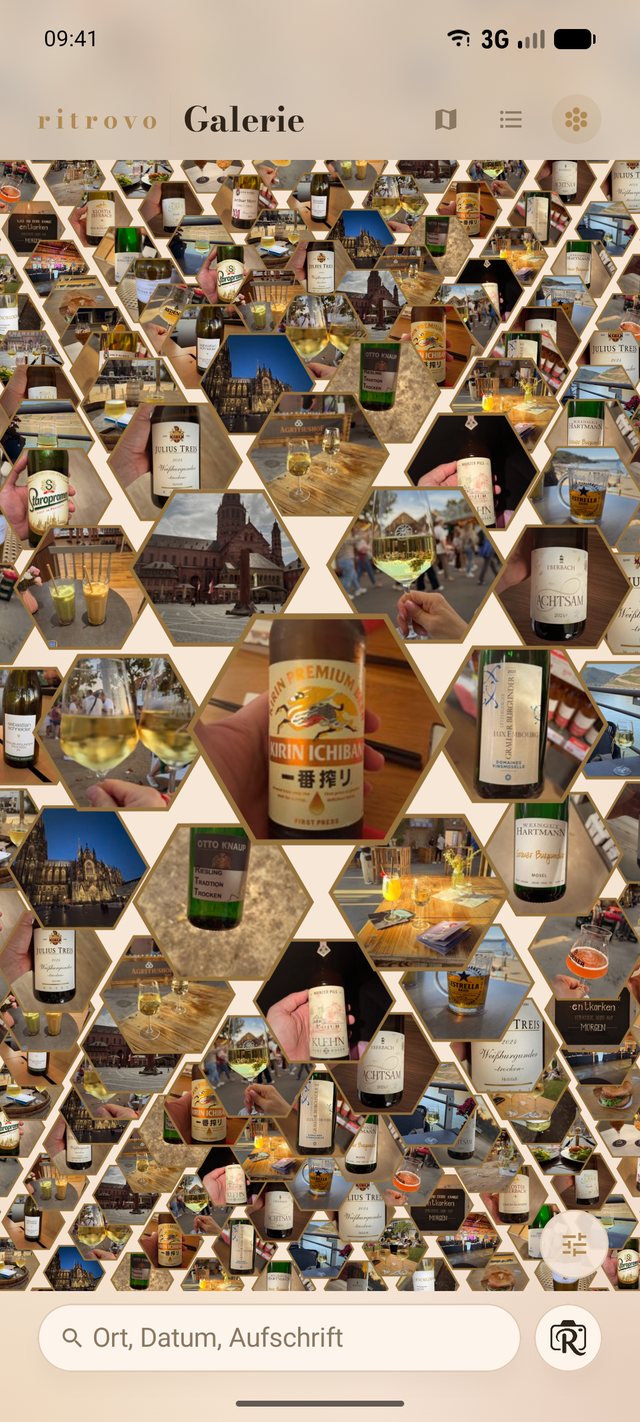
- Galerie: Wischen schiebt die Wand, ein Tipp auf ein Randbild holt es in die Lupe, ein Tipp auf das Bild in der Lupe öffnet den Eintrag. Die Wand wandert von selbst. Der Knopf Feinjustierung unten rechts verstellt die Anordnung der Waben.
- The “Nearby” map: one picture pin per place. A tap opens the entry, or the list for that place if there are several. Show the whole map brings all places into view. Show everything clears a search. Entries without a place are not on the map.
- The “Kept” list: ordered by day.
- Gallery: swipe to move the wall, tap a picture at the edge to bring it into the magnifier, tap the picture in the magnifier to open the entry. The wall drifts on its own. The Fine-tuning button at the bottom right changes how the honeycomb is laid out.
Suchen und filternSearch and filter
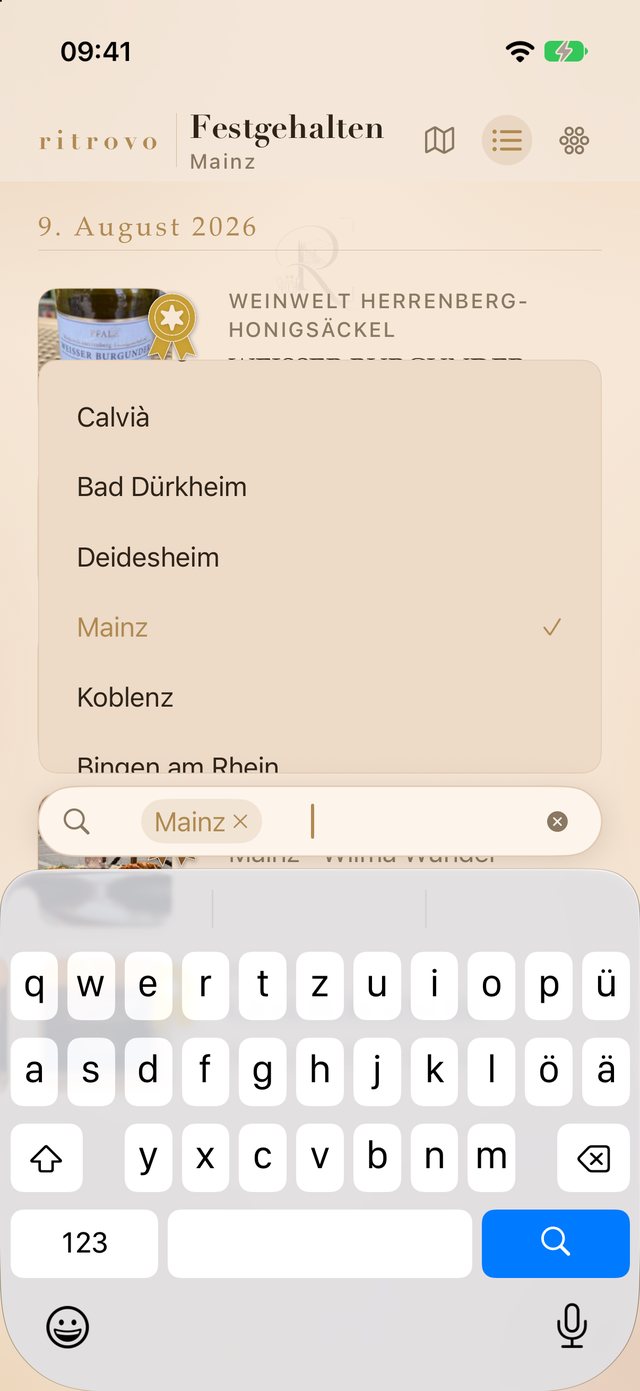
Tippe unten ins Suchfeld. Darüber erscheint eine Werteliste mit Ort (Städte), Wo (deine Ortsnamen), Bewertung und Mit (Personen). Deine Wahl wird zur Marke im Feld; antippen entfernt sie.
Getippter Text durchsucht Name, Notiz, Ortsname, Stadt, ein ausgeschriebenes Datum („Juli“, „2019“), was du markiert hast, und den erkannten Text vom Etikett. Ab fünf Zeichen verzeiht die Suche Tippfehler.
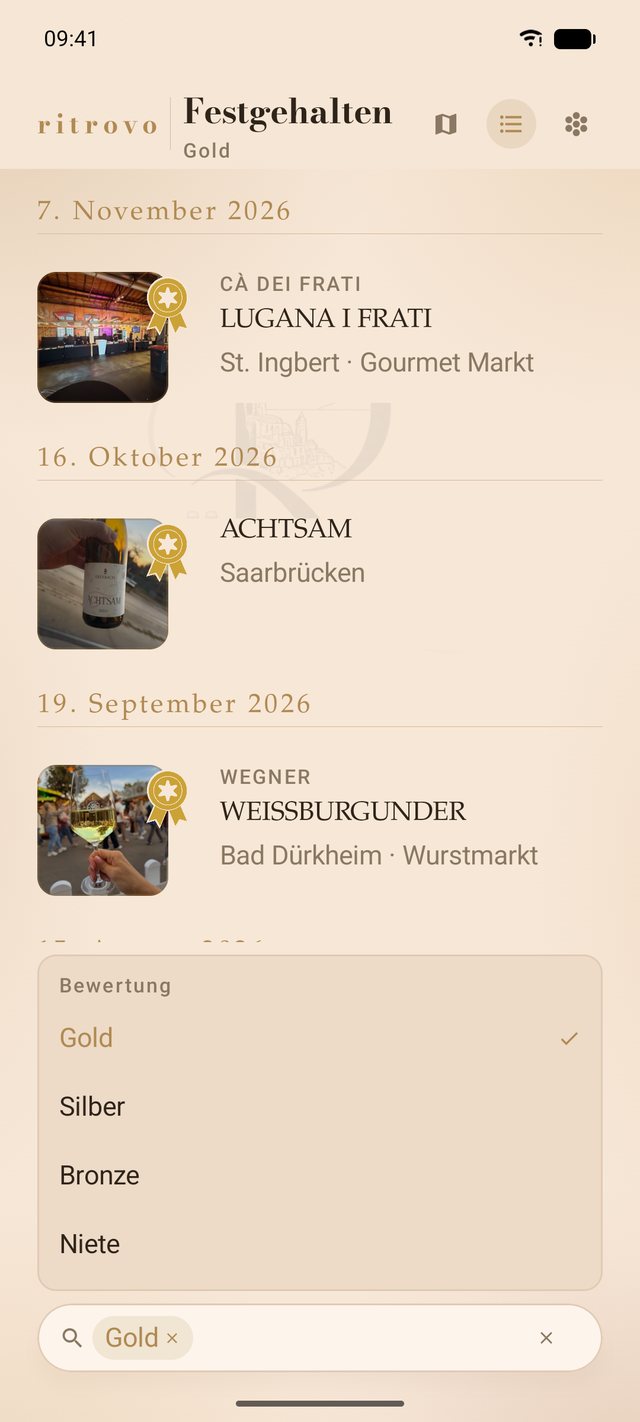
Tippe unten ins Suchfeld. Als Filter gibt es Bewertung. Getippter Text durchsucht Name, Hersteller und deine Ortsnamen.
Datum und erkannter Etikettentext werden auf Android noch nicht durchsucht, auch wenn das Suchfeld Ort, Datum, Aufschrift anzeigt.
Die Suche gilt für Karte, Liste und Galerie.
Tap the search field at the bottom. A list of values appears above it with Town, Where (your place names), Rating and With (people). Your choice becomes a token in the field; tap it to remove it.
Typed text searches the name, note, place name, town, a written-out date (“July”, “2019”), what you ticked, and the text recognised on the label. From five characters on, search forgives typos.
Tap the search field at the bottom. The filter is Rating. Typed text searches the name, the producer and your place names.
On Android, dates and the recognised label text are not searched yet, even though the search field shows Place, date, lettering.
Search applies to the map, the list and the gallery.
Kennst du schon: wenn ritrovo etwas wiedererkenntYou know this one: when ritrovo recognises something
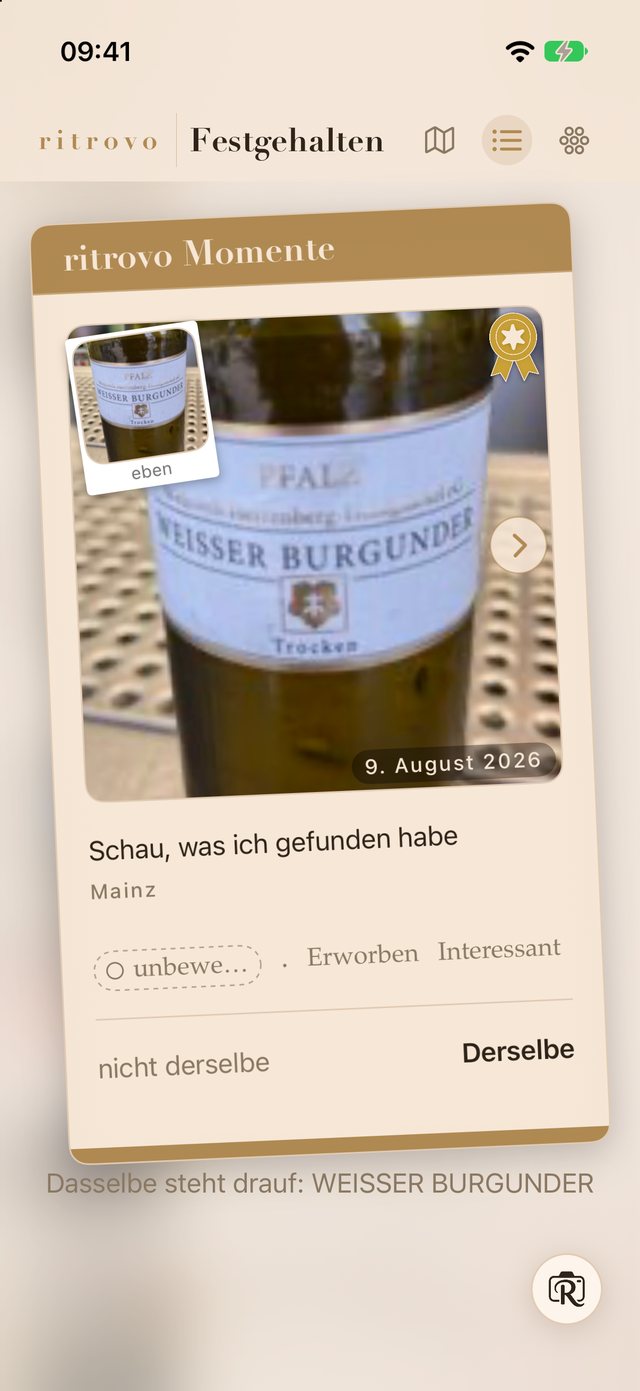
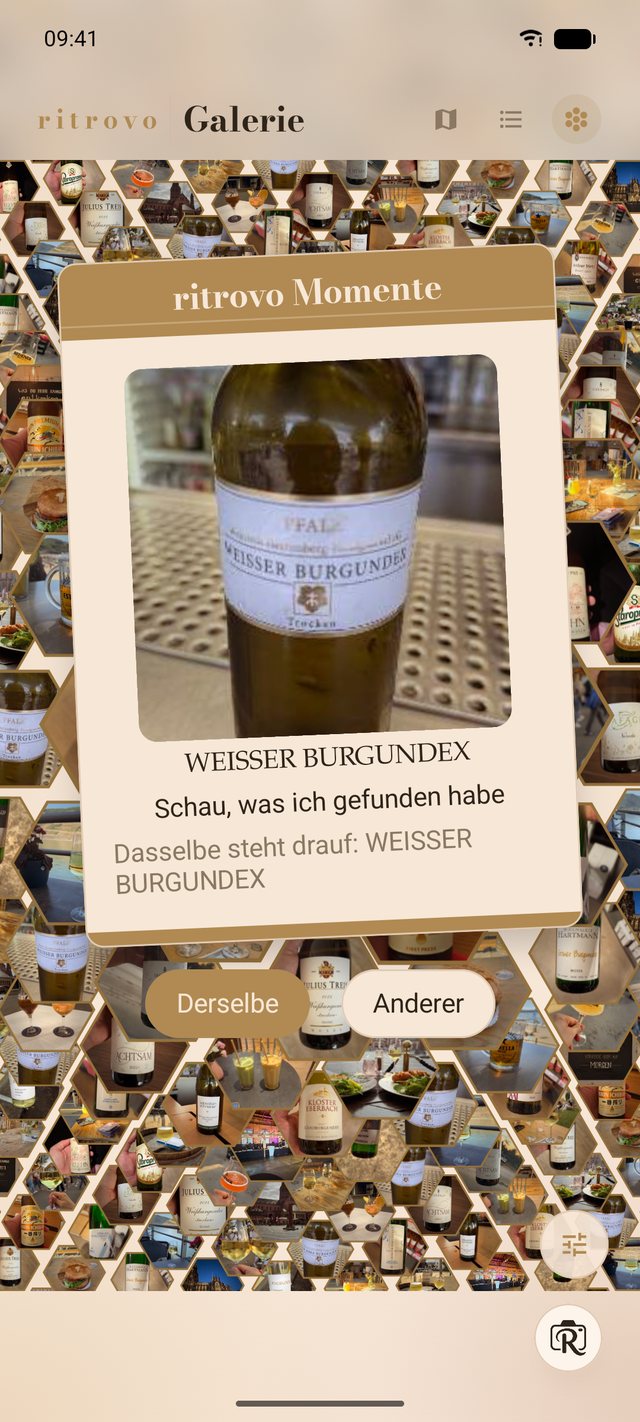
Nach einer Aufnahme vergleicht ritrovo sie mit deiner Sammlung. Steht dasselbe drauf, erscheint die Karte ritrovo Momente mit dem gemerkten Foto und dem Grund, etwa Dasselbe steht drauf: …. Eine Mitteilung gibt es nie; wer die App schon verlassen hat, sieht den Hinweis beim nächsten Öffnen.
- Derselbe verbindet die beiden Einträge, nicht derselbeAnderer verwirft den Hinweis. Wegwischen genügt auch.
- Ein Tipp auf das Foto öffnet den alten Eintrag.
- Wer es leiser mag, schaltet Als Erinnerungskarte zeigen aus. Dann kommt derselbe Hinweis als schmales Band über der Bedienleiste.
Mögliche Hinweise: Schau, was ich gefunden habe, „Davon hattest du den …“ (anderer Jahrgang), „Von … hattest du schon etwas anderes“ (gleicher Hersteller) und, nach Bildähnlichkeit, Kann das derselbe sein?.
After a shot, ritrovo compares it with your collection. If the lettering matches, the ritrovo moments card appears with the photo it remembered and the reason, such as Same lettering: …. There is never a notification; if you have already left the app, you see the hint the next time you open it.
- The same links the two entries, not the sameDifferent dismisses the hint. Swiping it away works too.
- Tap the photo to open the old entry.
- If you prefer it quieter, switch off Show as a memory card. The same hint then arrives as a slim banner above the toolbar.
Possible hints: Look what I found, “Of this you had the …” (another vintage), “You've had something else from …” (same producer) and, by picture similarity, Could this be the same one?.
Begegnungen verbinden und lösenLink and unlink encounters
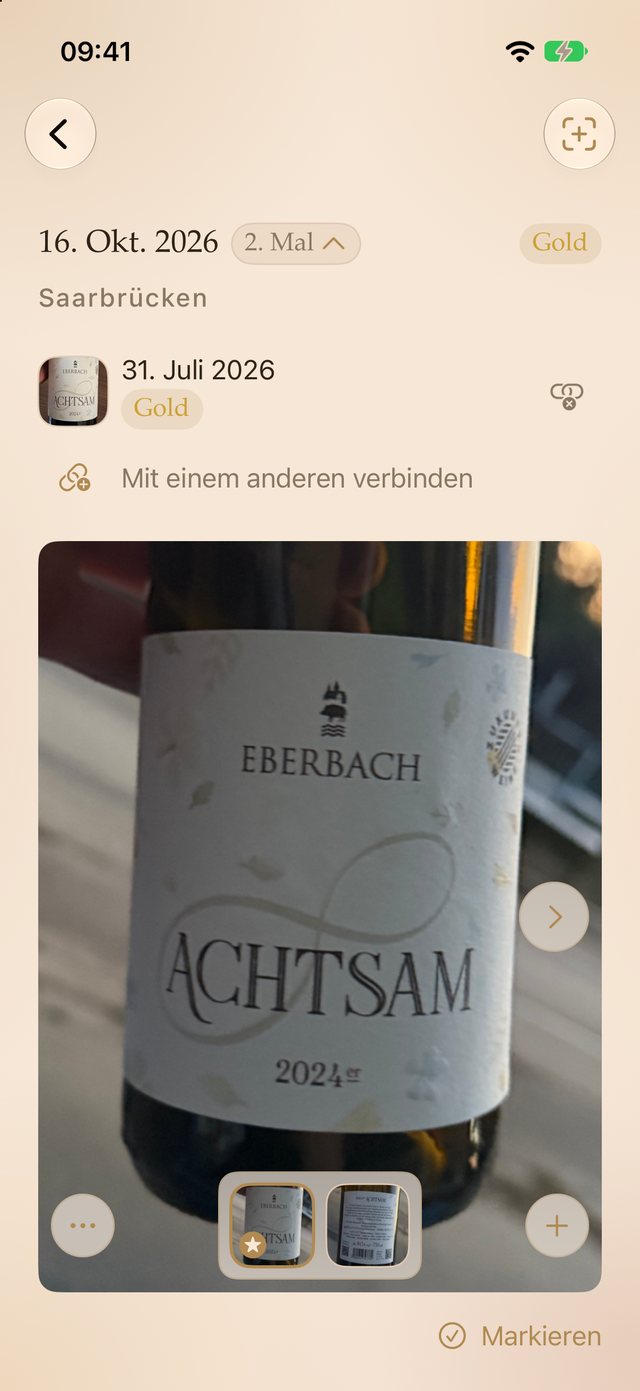
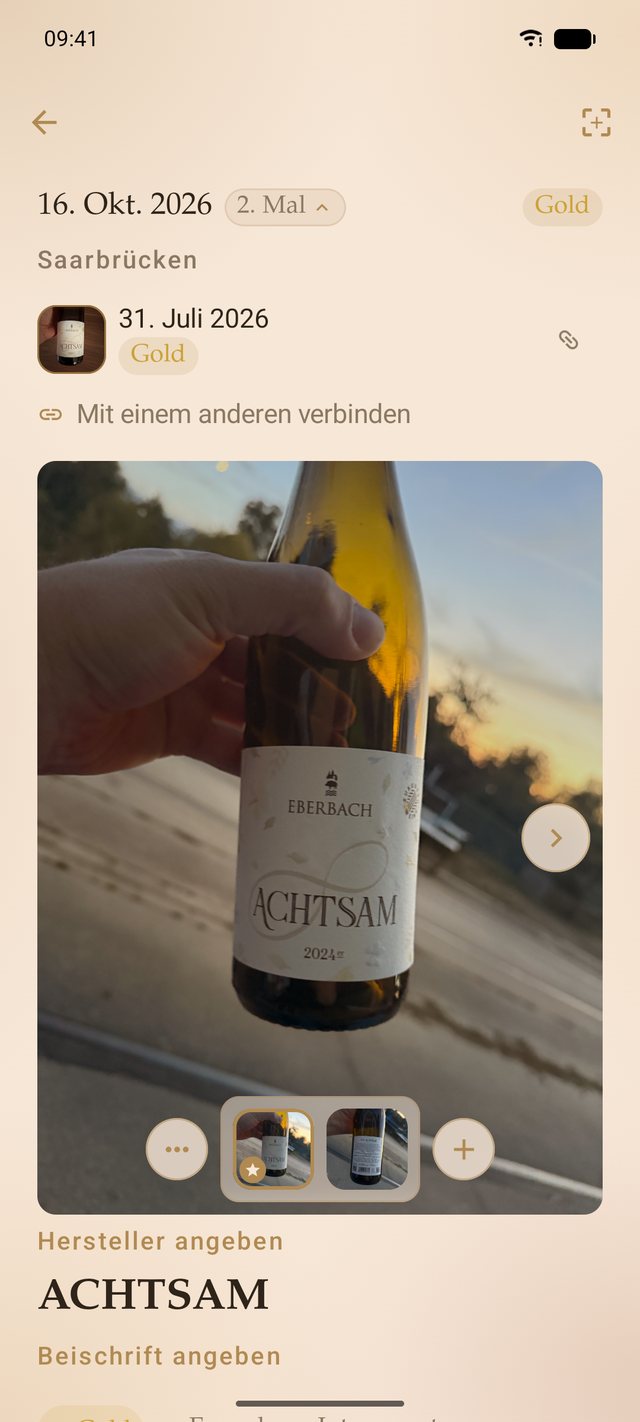
„Derselbe“ legt nichts zusammen: Beide Einträge bleiben und sind durch einen Faden verbunden. Im Eintrag zeigt ein Chip wie 3. Mal die früheren Begegnungen; antippen öffnet sie. Verknüpfung lösen trennt wieder.
Von Hand verbinden: im Eintrag auf den Chip verbinden tippen → Mit einem anderen verbinden → den anderen Eintrag wählen.
“The same” does not merge anything: both entries stay, linked by a thread. In the entry, a chip like Seen 3× shows the earlier encounters; tap it to open them. Unlink separates them again.
To link by hand: in the entry, tap the connect chip → Connect with another → choose the other entry.
Löschen und RückgängigDelete and undo
Einen Eintrag löschst du, indem du seine Zeile in der Liste nach links wischst. Bilder löschst du im Eintrag über Auswählen.
Es gibt keine Rückfrage und keinen Papierkorb. Ein Band meldet Eintrag gelöscht bzw. Bild gelöscht mit Rückgängig. Nach sechsfünf Sekunden ist die Löschung endgültig.
Was du in Apple Fotos löschst, ändert in ritrovo nichts: ritrovo hat eine eigene Kopie.
To delete an entry, swipe its row in the list to the left. You delete pictures in the entry with Select.
There is no confirmation and no trash. A banner says Entry deleted or Picture deleted with Undo. After sixfive seconds the deletion is final.
Deleting something in Apple Photos changes nothing in ritrovo: ritrovo keeps its own copy.
Einstellungen und Sicherung
Settings and backup
Alle EinstellungenAll settings
Tippe oben links auf die Wortmarke „ritrovo“. Es öffnet sich Über ritrovo.
| Schalter | Ab Werk |
|---|---|
| Ort am Eintrag festhalten | aus |
| Zweitschrift in der Fotomediathek | an (nur Kamera-Aufnahmen) |
| Aufnahmetag und Ort aus der Mediathek | aus |
| In iCloud sichern | aus |
| Als Erinnerungskarte zeigen | an |
| Erscheinung | Automatisch (oder Hell, Dunkel) |
| Schalter | Ab Werk |
|---|---|
| Ort am Eintrag festhalten | an |
| Als Erinnerungskarte zeigen | an |
| Erscheinung | Automatisch (oder Hell, Dunkel) |
| Automatisch sichern | aus, bis du einen Ordner wählst |
Dazu die Sicherung als Datei und ganz unten der Abschnitt Deine Daten. Unter Schriften stehen die Lizenzen der Schriften.
Tap the “ritrovo” wordmark at the top left. About ritrovo opens.
| Switch | At first |
|---|---|
| Keep the place with the entry | off |
| Second copy in the photo library | on (camera shots only) |
| Take the date and place from the library | off |
| Back up to iCloud | off |
| Show as a memory card | on |
| Appearance | Automatic (or Light, Dark) |
| Switch | At first |
|---|---|
| Keep the place with the entry | on |
| Show as a memory card | on |
| Appearance | Automatic (or Light, Dark) |
| Back up automatically | off until you choose a folder |
Plus the backup as a file and, at the very bottom, the Your data section. Fonts lists the font licences.
Sicherung als DateiBackup as a file
- Öffne Über ritrovo und tippe auf Sicherung erstellen.
- Lege die Datei ab, wo du willst: in deinen Dateien, in einer Cloud, als Mail an dich selbst.
Die Datei endet auf „.ritrovo“ und enthält deine Einträge mit Fotos, Namen, Urteilen, Orten und Verbindungen. ritrovo meldet danach etwa „Gesichert: 43 Einträge, 120 Bilder.“
Zurückholen: Aus Sicherung wiederherstellen und die Datei wählen. Wiederherstellen ergänzt nur: Vorhandenes wird weder überschrieben noch gelöscht. Die Meldung lautet etwa „Wiederhergestellt: 43 neu, 0 schon vorhanden.“
- Open About ritrovo and tap Create backup.
- Keep the file wherever you like: in your files, in a cloud, as an email to yourself.
The file ends in “.ritrovo” and holds your entries with photos, names, verdicts, places and links. ritrovo then reports something like “Backed up: 43 entries, 120 photos.”
Bringing it back: Restore from backup and choose the file. Restoring only adds: nothing that is there is overwritten or deleted. The message reads something like “Restored: 43 new, 0 already there.”
In iCloud sichernBack up to iCloud
In iCloud sichern ist anfangs aus. Eingeschaltet liegt eine Kopie deiner Einträge in deiner privaten iCloud: Namen, Orte, Urteile, Notizen und erkannte Texte. Die Bilder gehen nicht mit. Auf einem neuen iPhone stehen die Einträge deshalb ohne Bild da.
Der Schalter wirkt ab dem nächsten Start der App. Ohne Apple-Konto geht er von selbst wieder aus. Für die Bilder nimm die Sicherung als Datei.
Back up to iCloud is off at first. Switched on, a copy of your entries goes to your private iCloud: names, places, verdicts, notes and recognised text. The pictures do not go along. On a new iPhone, the entries are therefore there without pictures.
The switch takes effect the next time the app starts. Without an Apple account it switches itself off again. For the pictures, use the backup as a file.
Automatisch in einen Ordner sichernBack up to a folder automatically
- Öffne Über ritrovo, Abschnitt Automatisch in einen Ordner.
- Tippe auf Ordner wählen. Am besten einen, der in eine Cloud synchronisiert (etwa Drive oder Nextcloud).
- Schalte Automatisch sichern ein.
Legst du die App weg, sichert ritrovo still nach und überträgt nur, was neu ist. Drei ältere Stände bleiben erhalten. Jetzt in den Ordner sichern sichert sofort, Aus Ordner wiederherstellen holt einen Stand zurück.
Ist an deinem Gerät die Google-Sicherung eingeschaltet, nimmt Android ritrovo dort zusätzlich mit (Android begrenzt sie auf 25 MB je App).
- Open About ritrovo, section Automatically to a folder.
- Tap Choose folder. Ideally one that syncs to a cloud (Drive or Nextcloud, say).
- Switch on Back up automatically.
When you put the app away, ritrovo backs up quietly and transfers only what is new. Three older versions are kept. Back up to the folder now backs up at once, Restore from folder brings a version back.
If Google backup is on for your device, Android also includes ritrovo there (Android limits it to 25 MB per app).
Hell und dunkelLight and dark
Unter Erscheinung wählst du Automatisch (folgt dem Gerät), Hell oder Dunkel. Die Bilder auf dieser Seite zeigen beide Erscheinungen: Der Mond oben in der Leiste schaltet sie um.
Under Appearance you choose Automatic (follows the device), Light or Dark. The pictures on this page show both appearances: the moon in the bar at the top switches them.
ritrovo und gahoritrovo and gaho
gaho ist die Schwester-App für die Golfrunde. Sind beide auf deinem iPhone, teilen sie Personen und Orte. Trifft dein Suchtext oder Filter in ritrovo eine Person oder einen Ort aus gaho, erscheint oben in den Ergebnissen ein Abschnitt „aus gaho“; von dort springst du nach gaho und zurück. Ein eigenes Menü gibt es dafür nicht.
gaho ist die Schwester-App für die Golfrunde. Auf Android ist die Verbindung schmaler als auf dem iPhone: Die beiden Apps teilen nur die Liste der Personen. Einen Abschnitt „aus gaho“ in der Suche gibt es auf Android nicht.
gaho is the sister app for the round of golf. With both on your iPhone, they share people and places. If your search text or filter in ritrovo matches a person or place from gaho, a section headed “aus gaho” (from gaho) appears at the top of the results; from there you jump to gaho and back. There is no extra menu for it.
gaho is the sister app for the round of golf. On Android the link is narrower than on iPhone: the two apps only share the list of people. There is no “aus gaho” (from gaho) section in search on Android.
Alles im Überblick.
Everything at a glance.
Festhalten
- Eigener Sucher, mehrere Fotos ergeben einen Eintrag
- Ziele Neuer Eintrag, Letzter, Nur Galerie; Live Photos
- Bis zu zehn Fotos aus der Mediathek
- Ein Foto je Vorgang aus der Mediathek
- Name vom Etikett, von selbst oder per Gedrückthalten
- Widget auf dem Sperrbildschirm, Steuerelement im Kontrollzentrum
Der Eintrag
- Medaille: Gold, Silber, Bronze, Niete; dazu Erworben oder Interessant
- Hersteller, Name, Beischrift, Notiz, Datum, Ort
- Markieren auf der Weinkarte
- Wer war dabei, ohne Adressbuch
- Fotos vom selben Abend, Bildausschnitt, eigener Eintrag aus Bildern
Wiederfinden
- Karte, Liste, Galerie
- Suche in Name, Notiz, Ort, Datum und Etikettentext; Filter Ort, Wo, Bewertung, Mit
- Suche in Name, Hersteller und Ortsnamen; Filter Bewertung
- Kennst du schon: Hinweis nach der Aufnahme, Faden zwischen Begegnungen
- Leise Frage nach Bildähnlichkeit
Sicherung und Daten
- Sicherung als Datei, mit allen Bildern
- iCloud-Sicherung, freiwillig, ohne Bilder
- Zweitschrift in Apple Fotos
- Automatisch in einen Ordner deiner Wahl
- Hell und dunkel, Deutsch und Englisch
Gibt es bewusst nicht
- Konto, Abo, Werbung, Tracking
- Sterne, Punkte, Pflichtfelder, Kategorien
- Produktdatenbank, Preise, fremde Bewertungen
- Feed, Teilen von Einträgen, Mitteilungen
- Papierkorb und Löschrückfrage (dafür Rückgängig)
- iPad, Querformat, Apple Watch, Home-Widget
- Widgets, Uhr
Capture
- Its own viewfinder; several photos make one entry
- Targets New entry, Last, Gallery only; Live Photos
- Up to ten photos from the library
- One photo at a time from the library
- Name from the label, by itself or by touch and hold
- Lock Screen widget, Control Center control
The entry
- Medal: gold, silver, bronze, dud; plus Acquired or Interesting
- Producer, name, caption, note, date, place
- Ticking lines on a wine list
- Who was there, without your contacts
- Photos from the same evening, crop, separate entry from pictures
Finding again
- Map, list, gallery
- Search in name, note, place, date and label text; filters Town, Where, Rating, With
- Search in name, producer and place names; filter Rating
- You know this one: a hint after the shot, a thread between encounters
- A quiet question based on picture similarity
Backup and data
- Backup as a file, with all pictures
- iCloud backup, optional, without pictures
- Second copy in Apple Photos
- Automatically to a folder of your choice
- Light and dark, English and German
Left out on purpose
- Account, subscription, ads, tracking
- Stars, points, required fields, categories
- Product database, prices, other people’s ratings
- Feed, sharing entries, notifications
- Trash and delete confirmation (there is Undo instead)
- iPad, landscape, Apple Watch, Home Screen widget
- Widgets, watch
iPhone und Android im Vergleich
| iPhone | Android | |
|---|---|---|
| Erste Ansicht | Karte | Liste |
| Ortsschalter ab Werk | aus | an |
| Ziele im Sucher | Neuer Eintrag, Letzter, Nur Galerie | Neuer Eintrag |
| Aus der Mediathek | bis zu 10 Fotos | 1 Foto |
| Live Photo, Zweitschrift, Fotos vom Abend | ja | nein |
| Suche | mit Datum und Etikettentext; Filter Ort, Wo, Bewertung, Mit | Name, Hersteller, Ortsname; Filter Bewertung |
| Ort | benennen, Stadt, zuordnen, neuer Ort | benennen, wählen |
| Bildausschnitt, eigener Eintrag aus Bildern | ja | nein |
| Frage nach Bildähnlichkeit | ja | nein |
| Sicherung | Datei; iCloud ohne Bilder | Datei; Ordner; Google-Sicherung |
| Karte | Apple Karten | OpenStreetMap |
| Widgets | Sperrbildschirm, Kontrollzentrum | keine |
| Rückgängig | 6 Sekunden | 5 Sekunden |
| Mindestens | iOS 17 | Android 8.0 |
iPhone and Android compared
| iPhone | Android | |
|---|---|---|
| First view | Map | List |
| Place switch at first | off | on |
| Viewfinder targets | New entry, Last, Gallery only | New entry |
| From the library | up to 10 photos | 1 photo |
| Live Photo, second copy, evening photos | yes | no |
| Search | with date and label text; filters Town, Where, Rating, With | name, producer, place name; filter Rating |
| Place | name, town, reassign, new place | name, choose |
| Crop, separate entry from pictures | yes | no |
| Question based on picture similarity | yes | no |
| Backup | file; iCloud without pictures | file; folder; Google backup |
| Map | Apple Maps | OpenStreetMap |
| Widgets | Lock Screen, Control Center | none |
| Undo | 6 seconds | 5 seconds |
| Requires | iOS 17 | Android 8.0 |
Kurz beantwortet.
Answered briefly.
Wann kommt ritrovo, und was kostet es?When is ritrovo coming, and what does it cost?
ritrovo ist noch nicht veröffentlicht, weder im App Store noch bei Google Play. Den Preis siehst du dann im Store. In der App gibt es keine Käufe und kein Abo.
ritrovo is not released yet, neither on the App Store nor on Google Play. You’ll see the price in the store then. There are no purchases and no subscription inside the app.
Auf welchen Geräten läuft ritrovo?Which devices does ritrovo run on?
Auf dem iPhone ab iOS 17, im Hochformat. Kein iPad, keine Apple Watch.
Auf Android-Telefonen ab Android 8.0.
Die App gibt es auf Deutsch und Englisch, hell und dunkel.
On iPhone with iOS 17 or later, in portrait. No iPad, no Apple Watch.
On Android phones with Android 8.0 or later.
The app comes in English and German, light and dark.
Was verlässt mein Gerät?What leaves my device?
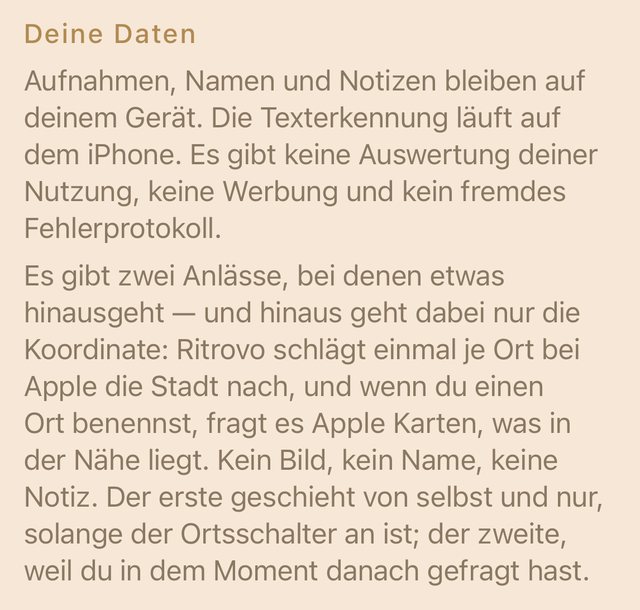
Aufnahmen, Namen und Notizen speichert ritrovo auf deinem Gerät. Die Texterkennung läuft auf dem Gerät. Es gibt kein Konto, keine Werbung und keine Auswertung deiner Nutzung.
- Mit eingeschaltetem Ort: die Koordinate an Apple, einmal je Ort, für den Stadtnamen.
- Beim Benennen eines Orts: die Koordinate an Apple Karten für die Vorschläge in der Nähe; ein getippter Stadtname für die Stadtsuche.
- Die Karte kommt von Apple Karten.
- iCloud nur, wenn du sie einschaltest, ohne Bilder. Die Zweitschrift liegt in Apple Fotos, mit iCloud-Fotos also auch dort.
- Mit eingeschaltetem Ort: die Koordinate an den Ortsdienst deines Geräts, für den Stadtnamen.
- Die Kartenkacheln kommen von OpenStreetMap.
- Die Ordner-Sicherung geht dorthin, wo der gewählte Ordner liegt; die Google-Sicherung, wenn sie an deinem Gerät an ist.
ritrovo saves photos, names and notes on your device. Text recognition runs on the device. There is no account, no advertising and no analysis of how you use the app.
- With the place switch on: the coordinate goes to Apple, once per place, for the town name.
- When you name a place: the coordinate goes to Apple Maps for nearby suggestions; a typed town name for the town search.
- The map comes from Apple Maps.
- iCloud only if you switch it on, without pictures. The second copy is in Apple Photos, so with iCloud Photos it is there too.
- With the place switch on: the coordinate goes to your device’s location service, for the town name.
- The map tiles come from OpenStreetMap.
- The folder backup goes wherever the chosen folder is; Google backup, if it is on for your device.
Warum erkennt ritrovo meinen Wein nicht?Why doesn’t ritrovo recognise my wine?
ritrovo kennt nur, was du selbst festgehalten hast. Am ersten Tag erkennt es deshalb nichts wieder. Es vergleicht die Aufschrift: Ungefähr zwei von drei Wörtern eines alten Eintrags müssen auf dem neuen Bild stehen, ein Jahrgang muss genau stimmen. Eine Wein- oder Produktdatenbank gibt es nicht.
ritrovo only knows what you have kept yourself, so on day one it recognises nothing. It compares the lettering: roughly two out of three words of an old entry need to be on the new picture, and a vintage must match exactly. There is no wine or product database.
Der Name ist falsch gelesenThe name was misread
ritrovo korrigiert verlesenen Text nicht von selbst. Tippe auf den Namen und ändere ihn per Tastatur oder wähle eine andere Zeile im Bild (so geht’s). Ist kein Schriftzug eindeutig, bleibt der Eintrag ohne Namen.
ritrovo does not correct misread text on its own. Tap the name and change it on the keyboard, or pick another line in the picture (how to). If no lettering is clear, the entry stays without a name.
Legt ritrovo doppelte Einträge zusammen?Does ritrovo merge duplicate entries?
Nein, nie von selbst. Auch „Derselbe“ verbindet die Einträge nur mit einem Faden; beide bleiben bestehen (mehr dazu).
No, never on its own. Even “The same” only links the entries with a thread; both remain (more).
Ich habe aus Versehen gelöschtI deleted something by mistake
Tippe sofort auf Rückgängig im Band. Nach sechsfünf Sekunden ist die Löschung endgültig. Hast du eine Sicherung, holt Aus Sicherung wiederherstellen den Eintrag zurück, ohne Vorhandenes zu überschreiben.
Tap Undo in the banner right away. After sixfive seconds the deletion is final. If you have a backup, Restore from backup brings the entry back without overwriting anything.
Ich bekomme ein neues TelefonI’m getting a new phone
Mit der iCloud-Sicherung stehen deine Einträge wieder da, jeder ohne Bild. Mit der Sicherung als Datei kommen auch die Fotos zurück.
Erstelle vorher eine Sicherung als Datei oder nutze die Ordner-Sicherung. Auf dem neuen Telefon holst du damit alles zurück, auch die Fotos.
With the iCloud backup your entries are back, each without a picture. With the backup as a file, the photos come back too.
Make a backup as a file beforehand or use the folder backup. On the new phone it brings everything back, photos included.
Kann ich zwischen iPhone und Android wechseln?Can I switch between iPhone and Android?
Die Sicherungsdatei ist auf beiden dieselbe und für beide Richtungen gebaut: auf dem einen Gerät Sicherung erstellen, auf dem anderen Aus Sicherung wiederherstellen. Was ritrovo zum Wiedererkennen braucht, rechnet das neue Gerät selbst nach. Was die Android-Fassung nicht kennt, siehe Vergleich.
The backup file is the same on both and built for both directions: Create backup on one device, Restore from backup on the other. What ritrovo needs for recognising things, the new device works out again itself. For what the Android version does not have, see the comparison.
Gehen die Namen unter „Wer war dabei“ mit in die Sicherung?Do the names under “Who was there” go into the backup?
Nein. Die Personen stecken weder in der Sicherungsdatei noch in der iCloud-Sicherung in der Ordner-Sicherung. Nach einem Gerätewechsel legst du sie neu an.
No. The people are neither in the backup file nor in the iCloud backup in the folder backup. After moving to a new device, you add them again.
Erinnert mich ritrovo an etwas?Does ritrovo remind me of anything?
Nein. ritrovo schickt keine Mitteilungen. Hinweise wie „Kennst du schon“ erscheinen nur in der App.
No. ritrovo sends no notifications. Hints like “You know this one” appear only inside the app.
Kann ich Einträge mit anderen teilen?Can I share entries with others?
Nein. Es gibt keinen Feed und kein Teilen einzelner Einträge. Weitergeben lässt sich nur die ganze Sicherungsdatei.
No. There is no feed and no sharing of single entries. Only the whole backup file can be passed on.
Warum liegen meine Aufnahmen auch in Apple Fotos?Why are my shots in Apple Photos too?
Das ist die Zweitschrift: Kamera-Aufnahmen legt ritrovo zusätzlich in deine Fotomediathek, damit du das Original hast. Ausschalten: Über ritrovo → Zweitschrift in der Fotomediathek. Löschen in Apple Fotos ändert in ritrovo nichts.
That is the second copy: ritrovo also saves camera shots to your photo library, so you keep the original. To turn it off: About ritrovo → Second copy in the photo library. Deleting in Apple Photos changes nothing in ritrovo.
Frage nicht dabei?
Question not answered?
Schreib an hello@thadwi.studio. Wir antworten in der Regel innerhalb von zwei Werktagen, auf Deutsch oder Englisch.
Write to hello@thadwi.studio. We usually reply within two working days, in German or English.